Four things a reading system has to do, and everything FlowReader offers for each one. Anything requiring Pro, an account, or your own AI credentials is labelled where it appears.
Subscribe with a private alias; issues land in the archive, not your inbox.
Read
A controlled reading environment with four modes for different energies and goals, plus an optional assistant that works on the page in front of you.
Normal mode
Clean, distraction-reduced scrolling with optional bionic-style emphasis.
How it works
The default: the extracted text in one measured column, with the navigation, advertising and related-article furniture already stripped on the way in. Bionic emphasis is optional and off until you ask for it, and then it is yours to tune — how strongly the opening of each word is weighted, how much of the word it covers, and whether longer words get more emphasis than short ones.
One column, and nothing competing with it.
Bionic emphasis, with the weighting under your control. Placeholder.
Pacing mode
Advances focus through the text at a controlled speed, by word, sentence, line or block.
How it works
Pacing moves the focus through the text instead of leaving you to keep your own place on the page. You choose the unit — paragraph, sentence or word — and how the focus is drawn: a background, an underline or a box. The surrounding text can be dimmed, a reading guide line can follow along, and the speed can adapt to how dense a sentence is, pausing at punctuation and holding longer on a heading.
The focus moves; you keep reading.
Book mode
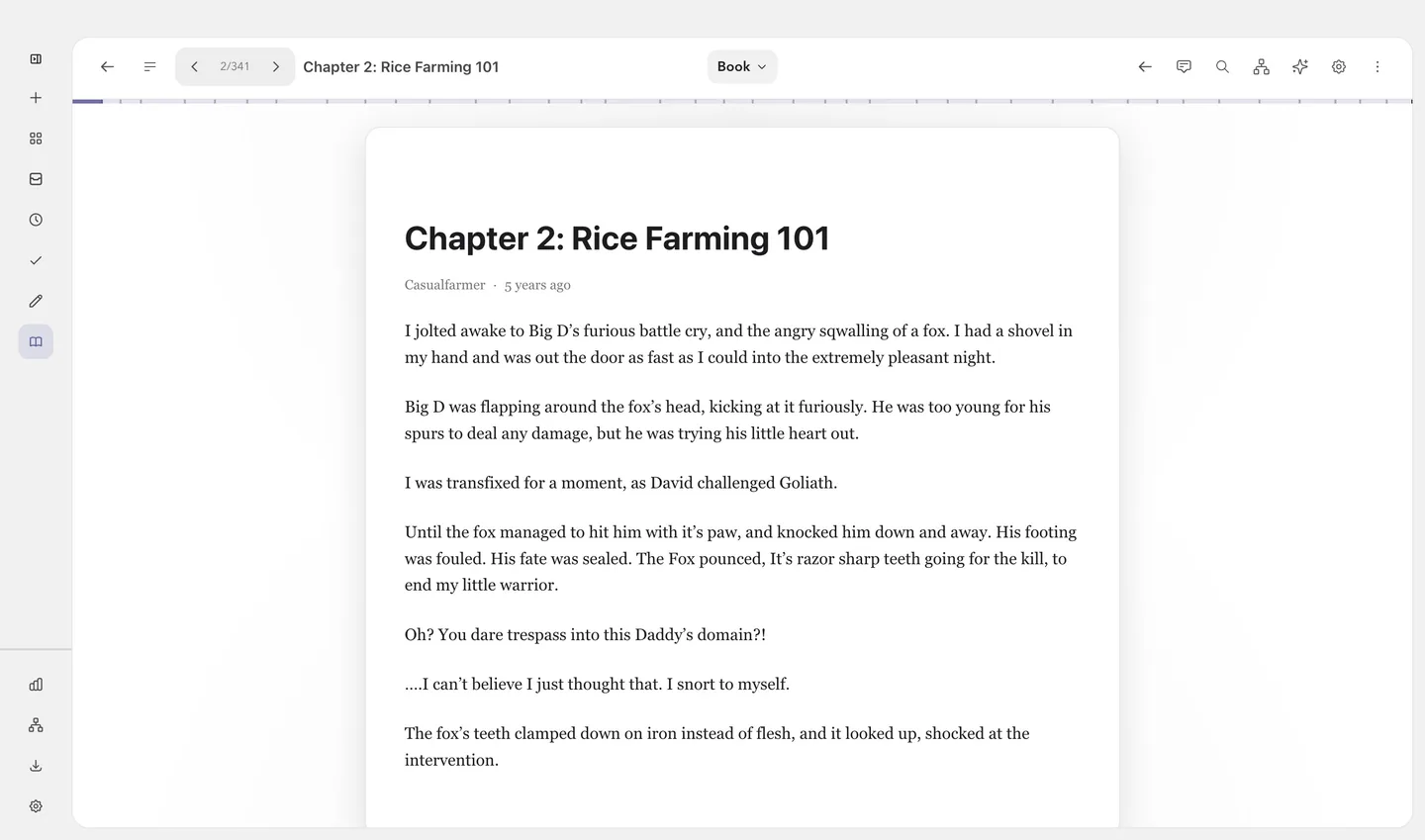
True e-reader pagination with chapter navigation, contents and wide spreads.
How it works
Book mode paginates rather than scrolls, with a table of contents, chapter headers and progress within the chapter as well as the whole work. On a wide screen it lays out a two-page spread, and an optional minimap shows where you are in the document. Comics get the same page-turning surface with rules of their own: the cover stands alone so every later pair matches print, and left-to-right or right-to-left is detected from the file at import and remembered on the comic rather than the session.
An imported ebook, paginated with its chapters intact.
RSVP mode
Rapid serial presentation at a fixed focus point, with chunking and punctuation-aware pacing.
How it works
RSVP presents the text a chunk at a time at one fixed point, so your eyes never travel. You set how many words appear at once, whether the flash pauses at punctuation, how many faded context words sit on either side, and whether the current sentence is shown underneath. The optimal recognition point inside each word can be highlighted, so every chunk lands in the same place.
One fixed point, and the text coming to you.
Exact position restore
Close anything, reopen days later, continue from the precise spot.
How it works
The reader persists a precise position, a progress percentage and a last-opened time as you go, and reopening restores the position rather than the top of the document. The save is deliberately withheld until the stored checkpoint has been read back: a reader that has just opened is sitting at the start, and writing that down would erase the place it is about to restore.
Highlights and notes
Coloured highlights, notes attached to selections, bookmarks and favourites.
How it works
Select a passage to highlight it in a colour, attach a note to that exact selection, or drop a quick bookmark. These are durable library data rather than reader session state: they survive reopening, they are searchable across the whole archive, they become nodes in the knowledge graph, and they are collected in a Highlights section so you can read back what you marked without reopening each item.
A passage marked, with a note on the selection itself.
Everything you marked, collected across the archive.
In-document search
Match navigation with chapter-aware jumps.
How it works
Search inside what you are reading, step between matches, and jump to the chapter or block holding one. It is deliberately separate from archive-wide search — and when an archive search is what opened the item, its anchor is carried into the reader, so you land on the passage that matched rather than at the top of a long document.
Matches counted, and a jump straight to the chapter. Placeholder.
Chapter navigation
Chapter-aware progress for books and serials.
How it works
Anything with real chapters keeps them: a working table of contents, chapter headers, progress inside the current chapter, and a resume that knows which chapter you were in. That covers EPUB, the Kindle formats, FictionBook and Royal Road serials. Comics have pages rather than chapters and use the comic surface instead.
Text to speech
Listen to anything in the archive, free and on-device for English.
How it works
English is spoken by a neural voice model that runs on your device. You install it once from settings, and after that nothing about what you are reading is sent anywhere to be spoken. Other languages use the voices your operating system already provides, picked per document rather than per app. The sentence being spoken is highlighted as you listen, so you can follow along or take over reading at any point: select a passage and choose Read from here to start where you want, and once it is reading, click any word to jump there. Speed runs from half to triple. It is free, needs no account, and runs in Normal mode — starting it from Book, Pacing or RSVP switches the reader there first.
The sentence being spoken, highlighted as you listen. Placeholder.
One download, then a voice and a speed that stay yours. Placeholder.
Offline access
Everything cached stays readable without a connection.
How it works
The library, your reading positions, your notes and the search index all live on the device, and none of them ask a server for permission to open. Anything already cached reads exactly the same with the network off. Turn sync on and it carries enough cached content that an item saved on another device opens on this one too.
Chat with the item you are reading; the assistant can read around your position.
How it works
The assistant answers from the item in front of you and nothing else. The retrieval boundary is explicit rather than implied — document chat can reach the open item and the passages attached to it, and archive-wide access is only available from the archive scope, which is labelled as such. It can read around your current position, so "explain this" means the part you are actually looking at. It runs on your own provider key, or on a local model.
The assistant, before a provider of your own is configured.
Inline citations jump back to the exact source passage.
How it works
An answer carries citations back to the archive items behind it, with the excerpt and, where there is one, a search anchor. Following a citation opens the reader at that passage rather than at the item. That is what makes the assistant a route back into your own reading instead of a second thing to read.
An answer that hands you back the passage it used. Placeholder.
Organize
One archive, organized the way you actually think about your reading.
Archive
Not Started, Reading and Completed sections plus an inbox-style entry point.
How it works
One library, with sections for what you have not started, what you are in the middle of and what you have finished, plus an inbox-style entry point for what has just arrived. Every item has a detail panel carrying its metadata, notes, collections, tags and the history of any rule that filed it. List, grid and masonry are the same archive seen three ways, not three places to keep things.
The archive as rows: status, source and date at a glance.
The same archive as cards, when you are browsing rather than working.
An item's detail panel: progress, length, source, collections.
Nested collections
Parent and child collections with drag-and-drop organization.
How it works
Collections nest, so a project can hold its own sub-collections instead of flattening into a soup of tags, and items move by being dragged. An item can belong to more than one collection, and adding it to one never takes it out of the archive — nothing is filed away by being organized.
Collections inside collections, arranged by dragging.
Tags
Flexible cross-cutting organization.
How it works
Tags cut across collections rather than competing with them: a collection is where something lives, a tag is what it is about. The same tag works as a filter, as a Smart Rule condition and as a node in the knowledge graph, so the effort of tagging pays back in more than one place.
Filters
Fast filters by type, status, date, notes and more.
How it works
Narrow the archive by content type, reading status, date, whether an item carries notes, and more. Filters compose with the section you are in and with search, so "unread PDFs I annotated last month" is a few clicks rather than a query language you have to learn first.
Narrowing a large archive without leaving it. Placeholder.
Bulk actions
Multi-select, context menus, and list, grid or masonry views.
How it works
Select many items and act on all of them at once — tag them, file them, mark them read — from the toolbar or a context menu. The same selection behaves identically in list, grid and masonry, so tidying up does not mean first finding the view that lets you.
Many items, one action. Placeholder.
Archive-wide search
Across titles, authors, tags, notes, annotation text, chapter titles and cached full text, with anchors that reopen the exact passage.
How it works
The index is built on your device out of what you actually saved: titles, authors, tags, your notes, the text of your annotations, chapter titles and the cached full text of documents. Results carry a snippet and a search anchor, so opening one puts you at the matching passage rather than at the top of a fifty-page document. Nothing is uploaded to be indexed, and search works with the network off.
A match, and a way straight back to the passage that matched.
Condition trees with nested AND/OR groups and negation that file items automatically.
How it works
A rule is a tree, not a single line: nested AND/OR groups with negation, matching on source, author, title, tags, length, date, reading behaviour and knowledge-graph attributes. Actions are additive and idempotent — add to a collection, add a tag, mark as read — so a rule can never quietly undo something you did by hand. Rules can be tested against the real archive before you commit them, so you see what one would have done rather than finding out afterwards, and every item keeps an audit history of the rules that touched it.
A condition tree, tested against real items before it is saved.
Invite named people to a collection, with per-person permissions.
How it works
You invite specific people by email address. There is no public link, and nothing is shared until the recipient accepts from their inbox. Each person gets a role and up to five separate permissions: edit notes, edit tags, edit annotations, add documents, remove documents. A read-only invitee genuinely cannot write, and that is enforced on the server as well as in the app, so it is not merely a hidden button.
Named people, named permissions, and no public link. Placeholder.
Export a collection as a file
A .flowcollection bundle, or plain HTML.
How it works
A collection can leave as a single .flowcollection file carrying its items, tags, annotations and reading positions, importable by anyone running FlowReader with no account on either side. HTML export is the other direction: readable anywhere, no FlowReader required. It is also the honest answer to "what if I stop paying" — your reading is a file you already have.
Everything leaves in one action, in a format that outlives the app.
Chat with a whole collection, with retrieval scoped to it.
How it works
Chat bounded to one collection and its children: retrieval cannot reach outside it, and answers cite the items they used. It is the difference between asking a model what it knows and asking your own reading what it says.
Recall
Turn a pile of saved items into something you can use again: by search, by connection, or by asking.
Reading goals
Set targets and track them over time.
How it works
Set a target and watch it against what you actually read. Goals draw on the progress the reader is already recording, so there is nothing to log by hand and nothing to keep honest.
A target, measured against real reading. Placeholder.
Statistics
Reading progress per item and per chapter, plus usage insights.
How it works
Progress per item and per chapter, and reading activity over time. It is computed locally from your own reading and stays on the device unless you turn sync on.
Reading activity over time, computed on the device.
Ask once, run now, then repeat the collection, signal or briefing that worked.
How it works
A Flow starts with a request, not a configuration wizard. It can work from watchlists, your archive or open-web discovery; collect new items, track a changing signal, write a cited briefing, or combine those outputs. Deterministic collection and compatible signals run without an AI key. Agentic research uses your configured provider and states whether it is running locally or on the FlowReader server.
Items, collections, tags, annotations, entities and emergent topics.
How it works
Built on your device from the archive you already have. There is no upload step and no separate service. Every item, tag, collection, annotation, author and source becomes a node, and the relationships between them become edges — so it gets denser as you save, rather than as you maintain it. The baseline needs no AI provider at all: entity extraction and TF-IDF relatedness are local calculations. A rebuild is checkpointed, so interrupting one does not start it over.
The overview across a whole archive.
People, organisations and projects, pulled out of what you saved. Placeholder.
Why two items are related, shown beside the one you are reading. Placeholder.
Clusters the reading formed on its own. Placeholder.
The items sitting between two separate areas. Placeholder.
An answer assembled from the graph, citing the archive behind it. Placeholder.
Heuristic extraction, with optional AI-powered extraction.
How it works
Every item entering the archive goes through a heuristic extractor that pulls out what is being written about: people, organizations, projects, identifiers. It is deliberately conservative — it publishes evidence for explicit identifiers, distinctive names, and proper names that either repeat or are supported by the title, rather than guessing — and it is anchored, so a claim is tied to where in the text it came from. It needs no AI provider. Optional enrichment can classify what the heuristics left unlabelled, queued, resumable and capped per day, and anything you curate by hand stays authoritative over anything a model suggests.
Community detection surfaces the clusters in your reading.
How it works
Community detection over the graph surfaces the groups of items that hang together: the subject you have been circling for two months without ever making a collection for it. They are found rather than declared, which is the point — you do not have to have been tidy for them to appear, and a cluster that proves itself is a good starting point for a real collection.
TF-IDF and opt-in embeddings connect related items.
How it works
Relatedness starts with TF-IDF similarity over the text you actually saved: a local calculation, no model and no network. Turning on embeddings adds a semantic signal that catches two items about the same thing in different words. Both feed the same edges, and a related panel sits inside the reader, so a connection surfaces while you are reading rather than only when you go looking for one.
Centrality finds the items connecting otherwise separate areas of your reading.
How it works
Centrality analysis finds the items sitting between clusters: the paper that links your security reading to your distributed-systems reading. Those are usually the most valuable things in an archive and the hardest to find by browsing, because they belong neatly to neither side.
Items you actually read in the same sitting become connected.
How it works
Items read in the same sitting become connected to each other. It captures something no amount of tagging does: that two pieces belonged to the same question on the same afternoon, whatever their subjects were.
The assistant can trace a path between two entities, summarize one across your whole archive, or recommend what to read next from structure rather than recency.
How it works
With your own key configured, the graph stops being something you look at and becomes something the assistant can query: trace the path between two entities, summarize everything your archive says about one, find every item mentioning it, list the topic clusters or the bridge items, or ask what to read next based on structure rather than on what arrived most recently.
Reusable, editable instruction sets with a bounded tool allowlist.
How it works
A skill is a named instruction set plus a bounded list of the tools it may use. Pick one in the composer, or let the assistant invoke it by name. The built-ins cover summarizing, explaining, fact-checking with citations, translating, quizzing yourself for retention, flashcards, critiquing an argument, comparing sources, deep research, graph exploration, reading recommendations and writing — and every scheduled Flow briefing is powered by one too. Editing a built-in forks your own copy rather than overwriting it, and you can write one from scratch.
A skill: instructions, plus the tools it is allowed to use. Placeholder.
Background analysts for collection analysis, comparison and topic exploration.
How it works
Background analysts for work too large for a single answer: analysing a whole collection, comparing two items, exploring a topic, or working through a range of chapters. They run alongside the conversation rather than blocking it.
Connect remote Model Context Protocol servers and bridge their tools into chat.
How it works
Connect a third-party Model Context Protocol server and its tools become available inside FlowReader’s own chat, named so you can always tell them from the built-ins. Connections are HTTPS only, the credential lives in the volatile store rather than in the settings table, and everything a server returns re-enters the prompt fenced as untrusted data. This is FlowReader reaching outward; letting an AI client reach in is the other direction, and it has a chapter of its own on the Pro page.
A third-party tool server, bridged into the assistant. Placeholder.
Fully local inference through Ollama and LM Studio.
How it works
Point FlowReader at Ollama or LM Studio and the assistant runs on your own device: no key, no provider account, and no request leaving the device. It works against a local model the same way it works against a remote one — the difference is the speed and the quality of whatever you are running.
Anthropic, OpenAI, Google and Hugging Face routing. Keys are stored locally and never synced.
How it works
Anthropic, OpenAI, Google and Hugging Face routing, with the key kept on the device and never synchronized to another device or to a server, on any provider. There is no FlowReader-owned key anywhere in the product, which is why AI is labelled as needing your own credentials wherever it appears: the cost is yours, it is visible, and it stops when you stop.
Your provider, your key, or no provider at all. Placeholder.
Make it yours
A reader you can actually stand to look at
Reading software you use for hours is not a place to accept somebody else’s taste. Every colour, every measurement and every mode setting is yours, it changes live while you read, and none of it costs anything.
Twenty-six themes, and then your own
A theme in FlowReader is five colours — background, text, links, selection and highlight — and everything else in the interface is derived from them. That is why picking one repaints the whole app rather than just the page you are reading, and why a theme you make yourself looks as finished as the ones that ship.
Thirteen light themes and thirteen dark, from plain paper and sepia through E-Ink to Nord, Dracula, Catppuccin and Tokyo Night
Build your own from any of them: a colour picker and a hex field for each of the five slots
A coherent-palette action shifts the whole set together and then enforces at least 4.5:1 contrast for text against the background it just made
An optional app-shell gradient — linear or radial, with an angle and up to six draggable stops, or one of twenty named blends
Export a theme to a file and import it again, so a look you like moves between machines and people
Typography you set once and stop thinking about
The reading font is separate from the interface font, because the thing you read for an hour and the thing you glance at are not the same problem. Both are yours to choose, and every measurement around them is a real range rather than three sizes called small, medium and large.
Seven reading faces, including Georgia, Charter and Palatino, with OpenDyslexic and Atkinson Hyperlegible offered alongside them
A separate set of interface faces, sans, serif and monospace, each previewing itself in its own type in the picker
Font size from 14 to 32 px, line height from 1.2 to 2.4, column width from 400 to 900 px
Paragraph spacing, margins, left or justified alignment, and hyphenation
An interface text size that rescales the whole app, not just the article
Every mode has its own controls
The four reading modes are not one renderer with a speed dial. Each carries the settings that only make sense for it, so tuning Pacing does not quietly change how a book paginates.
Bionic emphasis: how strongly word openings are weighted, how much of each word is covered, and an adaptive setting that gives longer words more
Book mode: a two-page spread on wide screens, and a minimap of the whole document
Pacing: the unit that moves, how the focus is drawn, a dimmed surround, a guide line, and pauses at punctuation and headings
RSVP: words per flash, faded context words either side, the sentence shown underneath, and the optimal recognition point highlighted
Save whole setups, and switch between them
A preset is the entire configuration under one name — theme, typography, mode settings, all of it. Reading a paper at a desk and reading fiction in the evening are different setups, and moving between them should be one action rather than eleven.
Name and save the current settings, then load one back whenever you want it
Everything is editable live from a panel inside the reader, so you tune it against real text rather than a preview
Themes, presets and settings travel between your devices once sync is on
The controls themselves
Twenty-six built-in themes, grouped light and dark. Placeholder.
Your own theme, from five colours. Placeholder.
An app-shell gradient, with stops you place yourself. Placeholder.
Real ranges, not three sizes called small, medium and large. Placeholder.
A whole setup, saved under one name. Placeholder.
All of it is free and works on the device. Only carrying your themes and presets to another device needs Pro.
Build a reading library you will actually return to