Guide
Import and save content
There are four ways in. Save the page you’re reading, add a link or pasted text, import a file, or bring an export from another reading app. Everything lands in the same library.
Before you start
- Free. You need no account and no Pro.
- Saving the page you are reading needs the browser extension for Chromium or Firefox. Links, pasted text, files and exports work in the extension and in the desktop app.
- Files of up to 200 MB each, in PDF, Word, EPUB, Kindle, Plain text, HTML, Rich text, FictionBook or Comic book format.
Steps
Save the page you are reading
- Open the article in your browser.
- Press Ctrl+Shift+E (Cmd+Shift+E on a Mac), the Read current page shortcut. Or right-click the page and choose Open in FlowReader.
- To keep only part of the page, select the text first, then right-click the selection and choose Open in FlowReader. A selection longer than 50 characters becomes a document of its own.
Save a link or pasted text
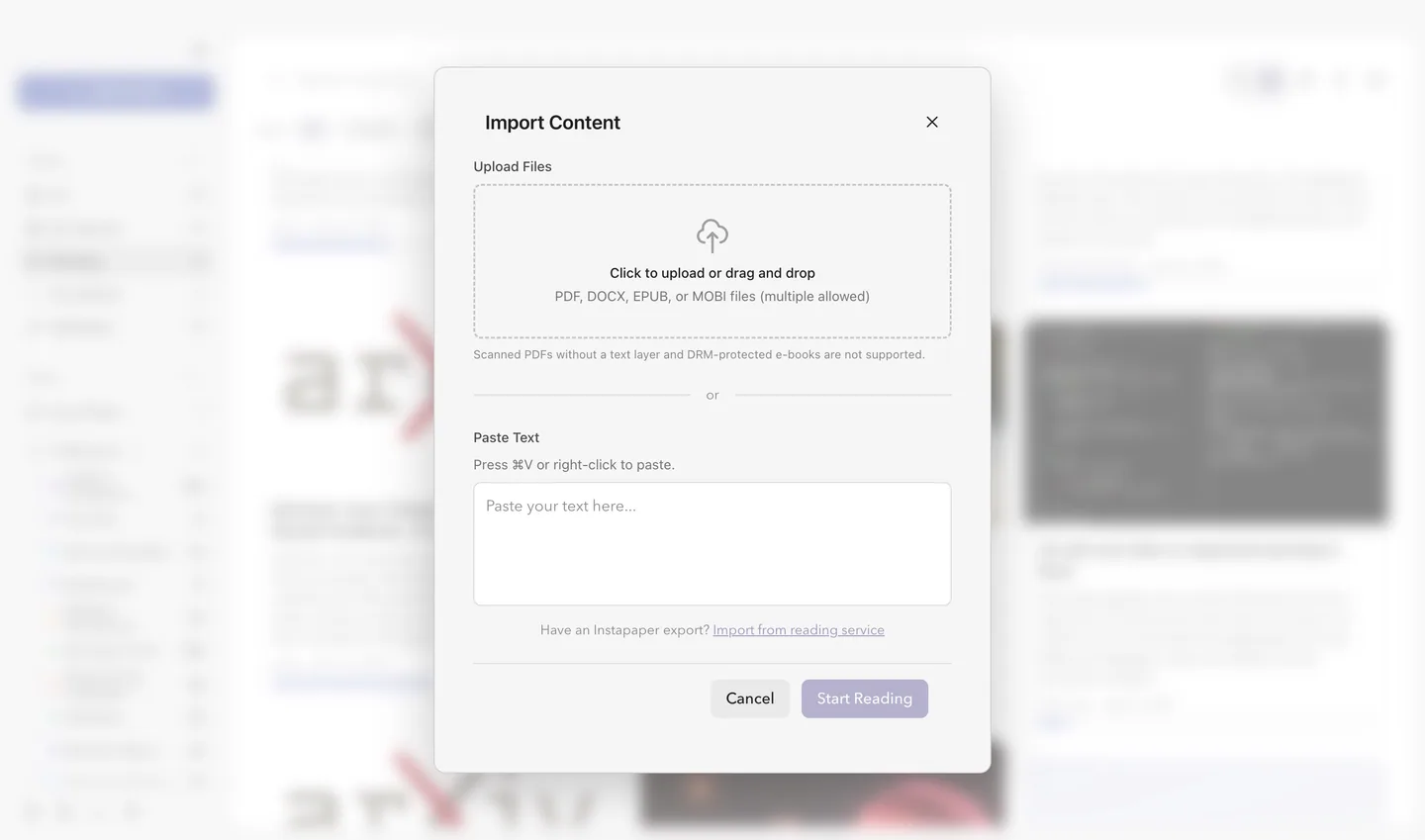
- In the library sidebar, choose Add content, then Import file or link….
- Paste a web address or any text into Paste a link or text.
- For a link, choose Fetch article. For other text, choose Start reading.
Pressing Ctrl+V (Cmd+V on a Mac) anywhere in the library saves what you copied without opening the dialog.
Import files
- Choose Add content, then Import file or link….
- Click Upload files and pick one or more files, or drag them onto that area.
You can also drop files anywhere on the library. In the desktop app, a supported file can be opened with FlowReader from your file manager.
Import from another reading app
- Export your library from Pocket, Omnivore, Readwise, Raindrop or Instapaper. Depending on the app, the export is a ZIP, CSV or HTML file of up to 500 MB.
- In FlowReader, open Settings, then Account & sync, and choose Import from another app… under Your data. The same button sits at the bottom of the Import content dialog.
- In Choose your export, pick the app and the export file. FlowReader recognises the app from the file itself.
- Check what will come in, then choose Import. The button says how many items it will create.
- When the import is done, choose Show imported items.

What you should see
A saved page or link opens in the reader and is in your library. If the same address is already there, that item is refreshed instead of saved twice.
Imported files appear in the library. EPUB, Kindle and FictionBook books keep their chapters and table of contents. Word documents keep their headings, lists and emphasis. CBZ and CBT comics open page by page in a reader of their own.
An import from another app brings in links, titles, authors, save dates, tags, folders as collections, read and archived state, favourites, notes and highlights.
Common problems
“No text could be extracted from this PDF.”
Cause: The PDF is a scan without a text layer. FlowReader does not run text recognition (OCR).
Fix: Run the PDF through an OCR tool that adds a text layer, then import it again.
“This EPUB is DRM-protected and cannot be opened.”
Cause: The book is copy-protected. FlowReader opens DRM-free e-books only, and the same applies to Kindle files.
Fix: Import a DRM-free copy of the book.
“File too large” or “Unsupported file type”
Cause: The file is over 200 MB, or its extension is not one of the formats listed under Before you start.
Fix: Split or convert the file and import it again. A .zip that a browser adds on download, as in book.epub.zip, is ignored, so such files need no renaming.
“That page has no readable article” or “That site refused the request”
Cause: The address leads to a paywall, a consent wall or a page that only renders with JavaScript, or the site turns away automated requests. Fewer than 200 readable characters came back, so nothing was saved.
Fix: Open the page in your browser, sign in or accept the consent prompt, and save it from there with Read current page.
“This browser page does not allow FlowReader content extraction.”
Cause: Browser pages such as settings, the extension store or a new tab cannot be read by extensions.
Fix: Use the shortcut on an ordinary web page. For a file on your computer, use Import file or link… instead.
All help topicsStill stuck?Contact support